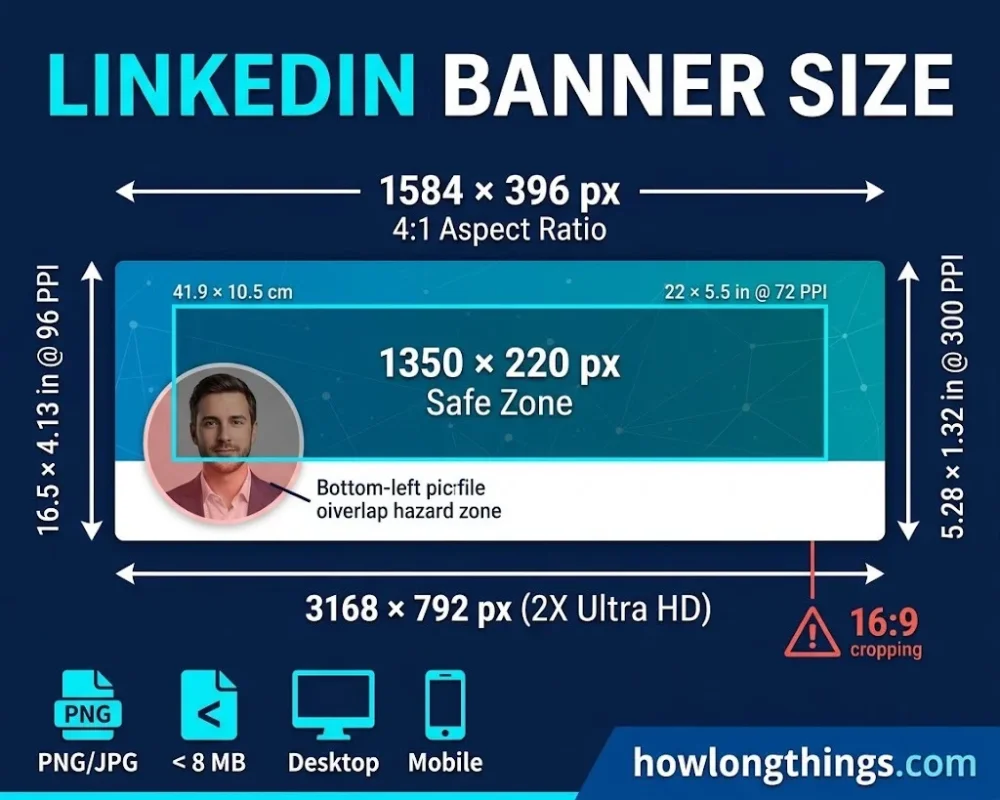
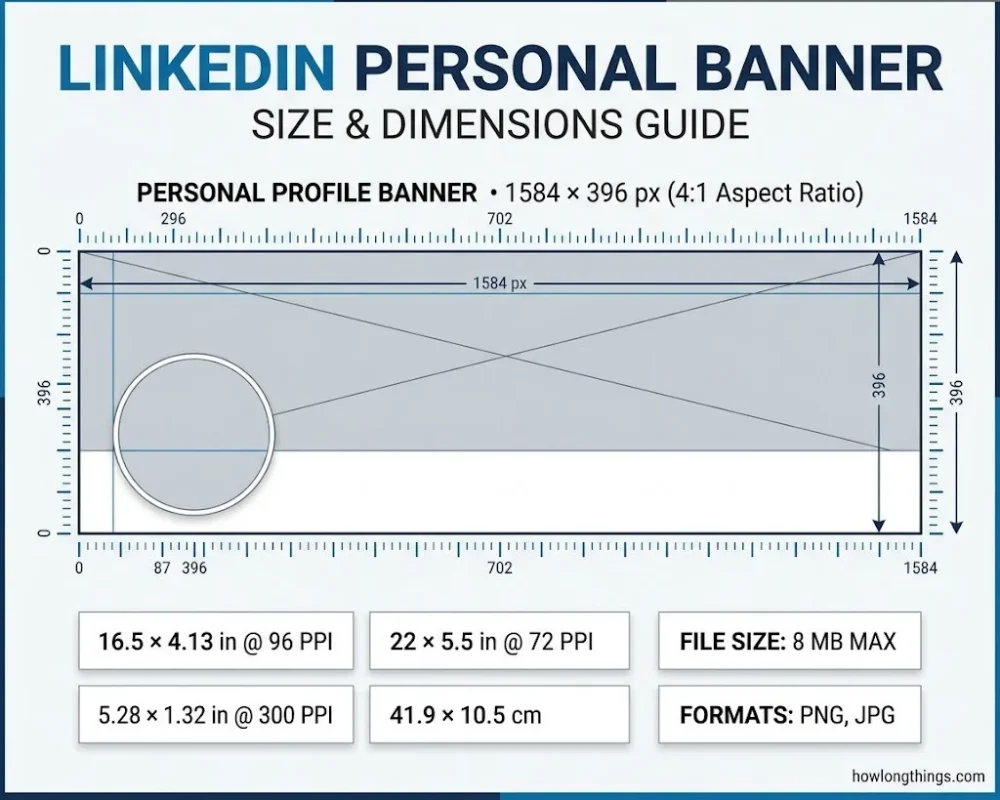
The LinkedIn banner size is 1584 x 396 pixels. That is a 4:1 aspect ratio, or about 16.5 x 4.13 inches at 96 PPI. LinkedIn lists 1584 (w) x 396 (h) pixels as the recommended cover image size, with a file under 8MB. You can confirm this on the LinkedIn Help page for cover images.
Your banner sits above your name and headline. It is the largest image on your profile. This guide covers LinkedIn banner dimensions in pixels and inches, the safe zone, how to resize, and tips that work for US job seekers, freelancers, recruiters and founders.
Table of Contents
LinkedIn Banner Size in Pixels & Inches (2026)
Use pixels when you design. LinkedIn reads pixels, not inches. Inches only matter in software that asks for them, so here is the conversion.
Unit
Personal profile banner
Pixels
1584 x 396 px
Inches (96 PPI)
16.5 x 4.13 in
Inches (72 PPI)
22 x 5.5 in
Inches (300 PPI)
5.28 x 1.32 in
Centimeters
41.9 x 10.5 cm
Aspect ratio
4:1
Max file size
8 MB
File formats
PNG, JPG
The inch value changes with PPI (pixels per inch). The pixel count never changes. Always set your canvas to 1584 x 396 px first.
LinkedIn cover photo size, LinkedIn background photo size and LinkedIn header size all mean the same image. LinkedIn now calls it a “cover image.”
Want a sharper result on high-resolution screens? Design at 3168 x 792 px. It keeps the same 4:1 ratio, so nothing gets cropped.
The wrong size causes trouble:
Too small: LinkedIn stretches the image, and it turns blurry or pixelated.
Wrong ratio: LinkedIn crops it, often through your text.
Too big: the file may pass 8 MB and fail to upload.
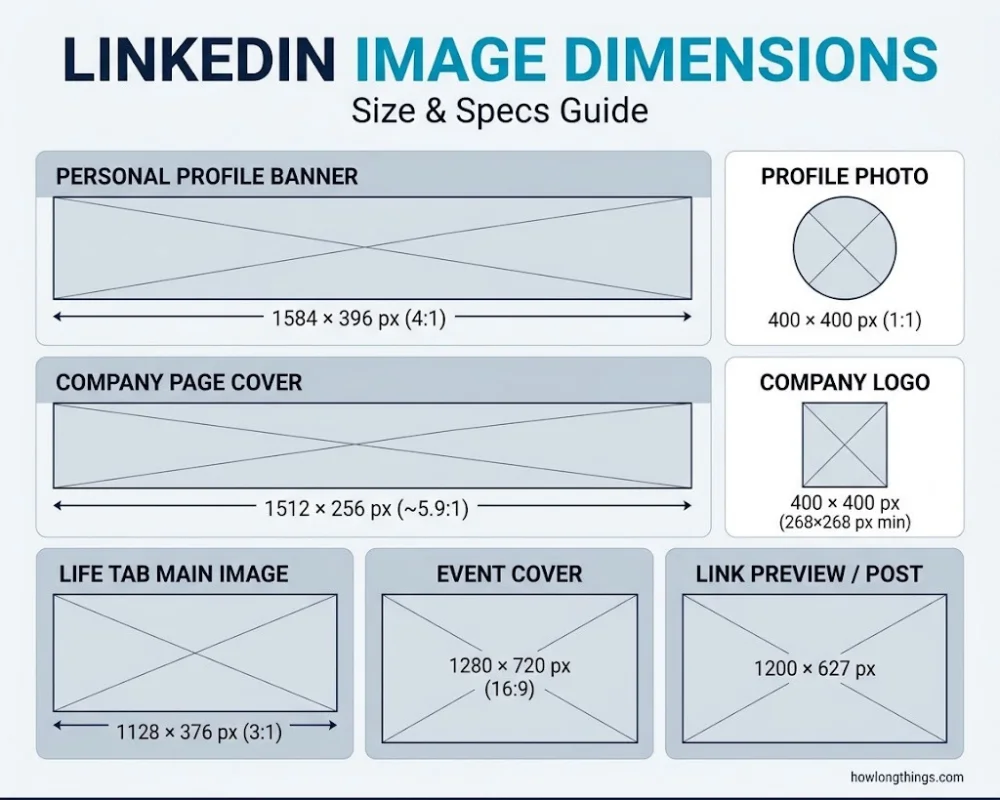
Company pages use a different cover size. LinkedIn’s Pages image specifications now list 1512 x 256 px. Older guides still quote 1128 x 191 px or 4200 x 700 px. Those are earlier specs.
All LinkedIn image dimensions (2026)
These sizes follow LinkedIn Help’s cover image and Pages image specifications pages, checked October 2026.
Link preview and landscape post image: 1200 x 627 px, a commonly used size.
Understanding digital dimensions is useful for print and design projects too, especially when creating documents that need consistent sizing. For a reliable reference, the standard A4 paper size provides a useful starting point for layouts, printing, and document design.
LinkedIn Banner Size for Mobile, Desktop & Safe Zone
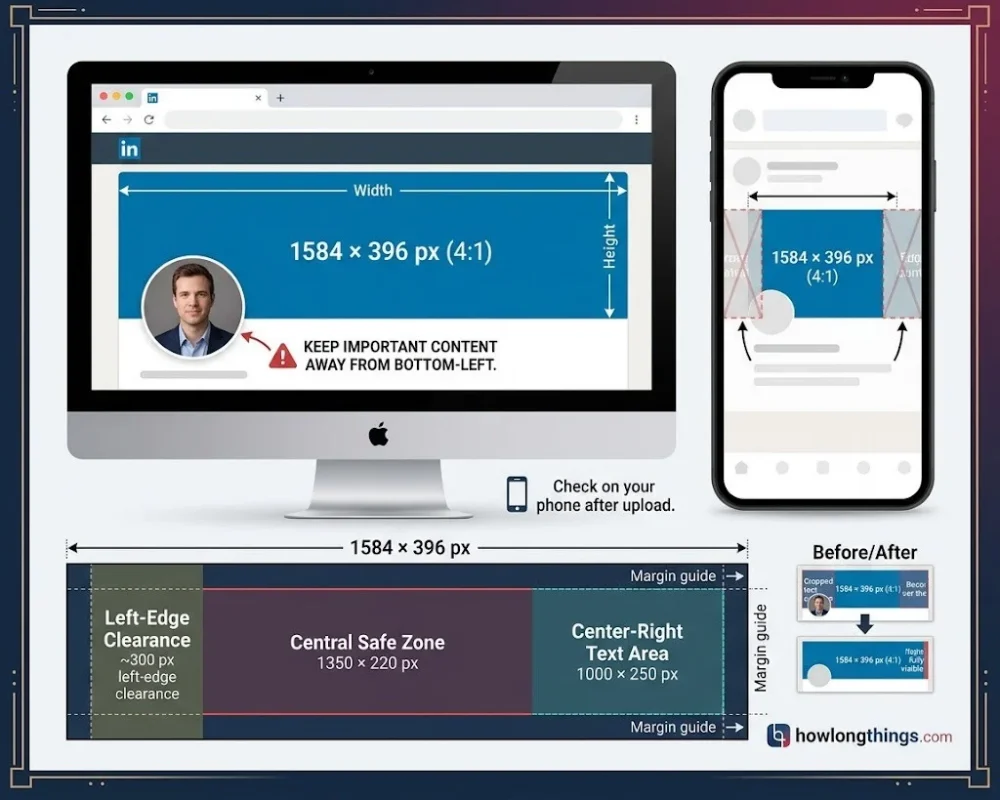
The same banner looks different on each screen. Desktop shows the full width. The mobile app trims the sides, so edge content can disappear.
Your profile picture also covers the bottom-left corner on desktop. Anything placed there will be hidden.
Use these safe zone rules:
Keep key logos and visuals in the center, inside roughly 1350 x 220 px.
Keep text in the center-right area, about 1000 x 250 px.
Stay about 300 px away from the left edge.
Leave margins on the top, right and bottom edges.
Check your banner on a phone after every upload. If a word is cut off, move it toward the center and upload again.
How to Resize and Upload a LinkedIn Banner
Start with the right canvas. It is easier than fixing an image later.
Resize an existing image:
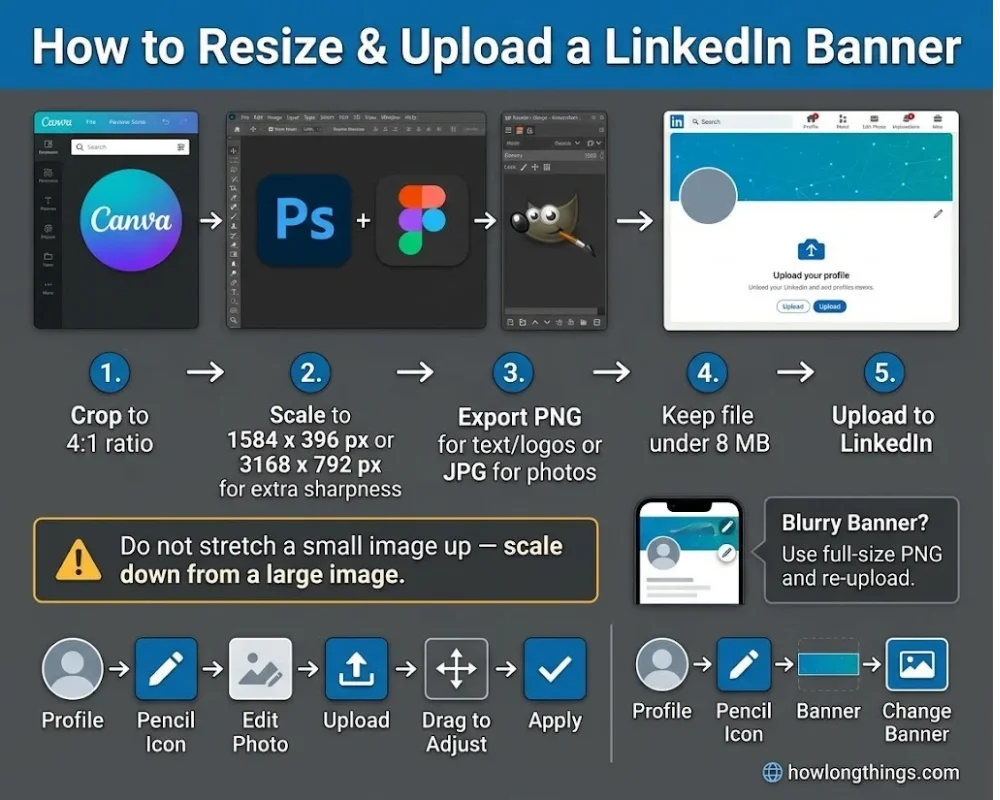
Open it in Canva, Photoshop, Figma or a free editor like GIMP.
Crop it to a 4:1 ratio first.
Scale it to 1584 x 396 px, or 3168 x 792 px for extra sharpness.
Export as PNG for text and logos. Export as JPG for photos.
Keep the file under 8 MB.
Scale from a large image down. Do not stretch a small image up.
Upload on desktop:
Go to your profile.
Click the pencil icon on the banner.
Select Edit photo and upload your file.
Drag to adjust, then click Apply.
On the LinkedIn mobile app, tap the pencil icon on your profile, then tap the banner to change it.
Blurry banner? Your image was probably too small, or heavily compressed. Re-export at full size as a PNG and upload it again.
Best LinkedIn Banner Tips for 2026
A banner should tell visitors who you help and what you do. Keep it simple.
Use short text. One line works best, especially on mobile.
Match your headline. Your banner and LinkedIn headline should tell one story.
Pick brand colors. Use two or three, and keep them consistent with your profile photo.
Use sharp images. Use your own photos or licensed stock images.
Add contrast. Dark text on a light background, or the reverse, is easy to read on small screens.
Avoid the default blue background. It makes a profile look unfinished.
Update it when things change. A new job, offer or event is a good time.
Tips by role:
Job seekers: show your field, skills or a short title.
Freelancers: show your service, or a few work samples.
Recruiters: show the company brand and a hiring message.
Founders: show your product, your logo and a clear tagline.
Quick check before you upload:
Size is 1584 x 396 px
File is under 8 MB
Nothing sits in the bottom-left corner
Text is readable on a phone
Colors match your brand
FAQs About LinkedIn Banner Dimensions
What is the exact size of a LinkedIn banner image?
The exact size is 1584 x 396 pixels, with a 4:1 aspect ratio. In inches, that is about 16.5 x 4.13 at 96 PPI. The file must stay under 8 MB.
What is the recommended size for LinkedIn banners in 2026?
The recommended LinkedIn banner size in 2026 is still 1584 x 396 pixels. Use PNG or JPG, and keep key content inside the center safe zone.
Is LinkedIn 16:9?
No. The LinkedIn banner is 4:1, not 16:9. A 16:9 image, such as 1920 x 1080 px, gets cropped on upload. Crop it to 4:1 first.
How do I resize an image for a LinkedIn banner?
Crop the image to 4:1. Then scale it to 1584 x 396 px in Canva, Photoshop or Figma. Export it as PNG or JPG under 8 MB, then upload it with the pencil icon on your profile.
What is the ideal banner size for LinkedIn?
The ideal size is 1584 x 396 pixels. For extra sharpness, design at 3168 x 792 px, which has the same 4:1 ratio. Keep text away from the bottom-left corner.
How can I resize my banner?
Open your banner in an editor and set the canvas to 1584 x 396 px. Fit your design to the new canvas. Move text toward the center, then export and re-upload it.
Conclusion
The rightLinkedIn banner dimensions are 1584 x 396 pixels, a 4:1 ratio, under 8 MB. Keep your key content in the center, away from the profile photo, and check the result on your phone.A sharp, simple banner makes your profile look polished. Set the size first, then design.
Elizabeth Queen is a Owner and consumer research writer at HowLongThings.com, specializing in product lifespan, durability, and everyday household research. She’s passionate about helping readers make smarter, longer-lasting buying decisions.